Invoices are sent as PDFs. To create one, follow the steps:
- Navigate to the “Orders to invoice” tab in the Commerce section
- Filter or search for the order you want to invoice and/or by: #
- Order ID: Can be found in the: “Products & Billing” section in the recruiter account
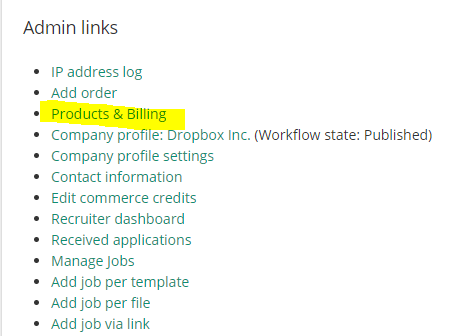
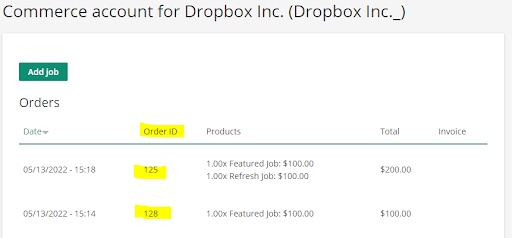
- Country of the company
- Company name
- Recruiter’s username
- Creation date between a and b
- Order ID: Can be found in the: “Products & Billing” section in the recruiter account
- After filtering, select the orders you want to invoice by ticking the checkbox on the left of the order. You can also select all filtered orders by clicking on the checkbox at the very top left of the table
- At the bulk operations, select “Invoice and mail selected orders” or “Invoice selected orders”
After an order is invoiced its created pdf can be downloaded manually in the “All orders” or “Invoices” tab in the commerce section by clicking on “invoce (pdf)” at the very right of the invoiced order