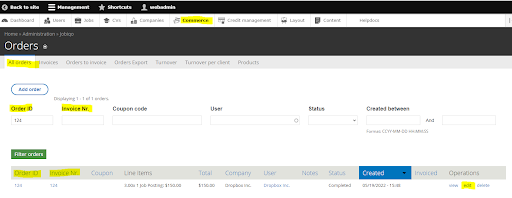
1. In the “All orders” tab, search for the order ID or invoice number
2. Select “Edit” on the right side of the desired order
3. Scroll down and select the “Order status” tab at the bottom and find the “Status” dropdown selection
4. Select “Canceled” at the top. This impacts the following settings:
- The order will not be shown in the billing information of the recruiter anymore
- If the order was about to be invoiced, it will not be shown in the “Orders to invoice” tab anymore
- The revision log of the order will be created which includes time and the date of cancellation. The revisions of the order can be found when selecting the “Revisions” tab at the top in the view or the edit mode.
Note: the acquired items from the order won’t be removed. This has to be done by an admin, for example, when changing the job or resume credits or resetting the recruiter to a "non-flatrate". If the product has already been used (e.g. a job was already posted), this has to be managed with the recruiter directly.