1) Orders can be edited. In order to do this, go to the commerce section in the admin management menu.
- At the "All orders" tab, search for order ID or invoice number
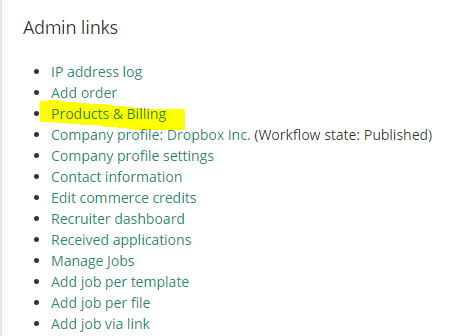
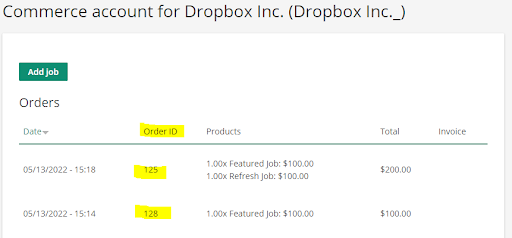
- The order ID can be found in "Products & Billing" section in the recruiter account.
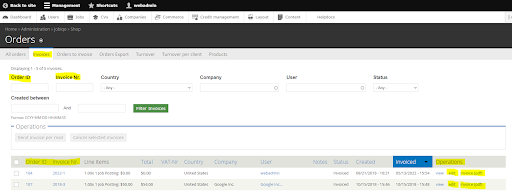
2) The invoice number can be found in the upper left corner of the sent invoice. The invoice pdf can be accessed by searching for the order ID (or invoice number) in the "Invoices" tab in the commerce section. In the "operations" column at the right, find the "invoice (pdf)" link for downloading the invoice.
3) If you have the order ID or the invoice number, search for the desired order in the "All orders" tab in the invoice section and select “edit” in operations column on the right.
3) Change all chosen items and informations:
- When checking the "Remove" checkbox in line items, adding a new product or coupon will remove the selected product
- Changing the unit price or the quantity will affect the total price after adding a new item or clicking on the “save order” button at the bottom
- Order notes. For example: "The order has changed from x to y as discussed" may be added
- Invoice and cancellation dates can be manually added, note the format: dd.mm.yyyy - hh:mm:ss
- Enter a coupon code if, for example, the recruiter forgot to use one but wanted to
- In the "Order history" tab at the bottom, you can change the creation date and create a new revision on update. The revisions can be found when clicking on the order and selecting the "Revisions" tab. There you can find the date and time when the order was changed; the author of the change; mail and status; a generated log message.
4) If a new invoice is required:
-
- Set the order status to "Checkout: Complete"
- Select "Trigger the checkout completed event" to complete the order process after saving. The order will be found afterwards in the “Orders to invoice” tab and the status will be set to “Completed”
- Navigate to the “Orders to invoice” tab in the commerce section and find the completed order. You can also search for it with the corresponding order ID
Note: The orders to invoice are sorted via first-in-first-out, which means the last completed order will appear at the bottom / as the last one - Select the checkbox on the left of the order to invoice and select “Invoice and mail selected orders” at the bulk operations at the top.