Orders are created automatically when a recruiter finishes a product order process. Created order then appears in “All orders” and “Orders to invoice” (path: Management -> Commerce -> “All orders” or “Orders to invoice”); latter if it wasn’t invoiced yet.
1) The order can be manually added for a recruiter by clicking on the “Add order” link in their recruiter user profile. This creates an order with the recruiter's billing information.
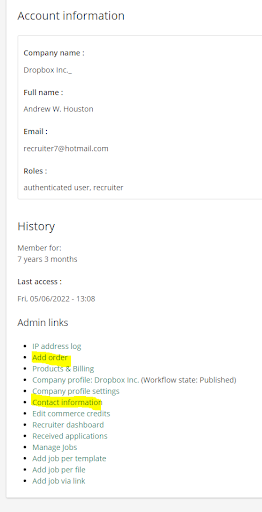
2) Alternatively, the order can be manually created by clicking on “Add order” in the All orders view and follow these steps:
- Enter coupons and products to the order as needed:
- For coupons, add the corresponding coupon code (check from your coupons: Path: Administration -> Store -> Coupons)
- For orders, add the stock keeping unit (SKU) of the order which is the name of the product (e.g. 5 job postings). The field makes suggestions when you start typing so that you don’t have to know the exact name beforehand. You can find available products with their corresponding SKU under Commerce -> Products
- Fill out the billing information
- This can be found in the “Contact information” link in the image above
- Enter order notes if needed
- Set internal invoice date and time if needed. If none is selected, the order will be invoiced immediately
- Set internal cancel date and time if needed
- Enter a coupon code if one should be used
- The codes for each coupon can be found in the Coupons section (Path: administration -> store -> coupons)
- Multiple coupon codes can be used by selecting “Add another item” and entering the second coupon code (if discount overlapping is enabled in the coupon)
- At the bottom select “User information” and type in the owner company which ordered the product and the email for order communication
Note: If you have created the order from the recruiter account, this information will be set automatically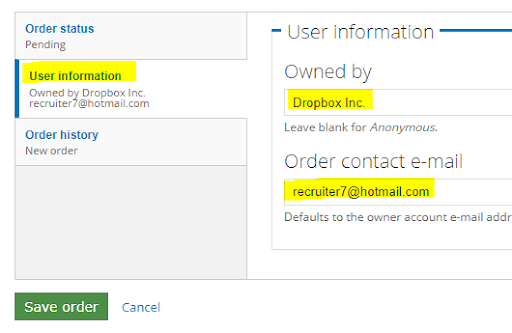
- Other options are not needed when creating an order, only when editing one.
Click “Save order”.