For registered applicants:
- Sign in to your account
- Click on your name in the upper right corner.
- In the drop-down menu, click on "My dashboard"
- In the menu bar on the left, click “Saved Job Alerts”. If you already have a job alert created it will be shown in this list.
- Alternatively, you can also click on the corresponding links within the job alert email to edit or delete your notification settings.
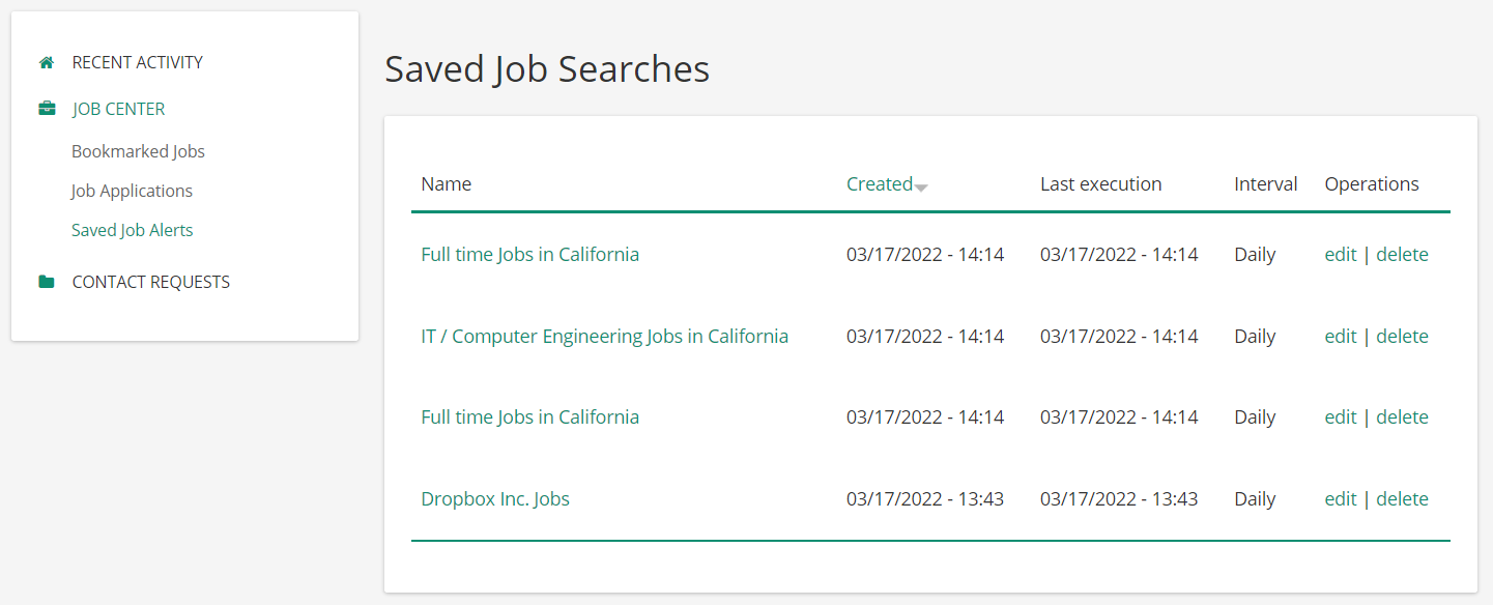
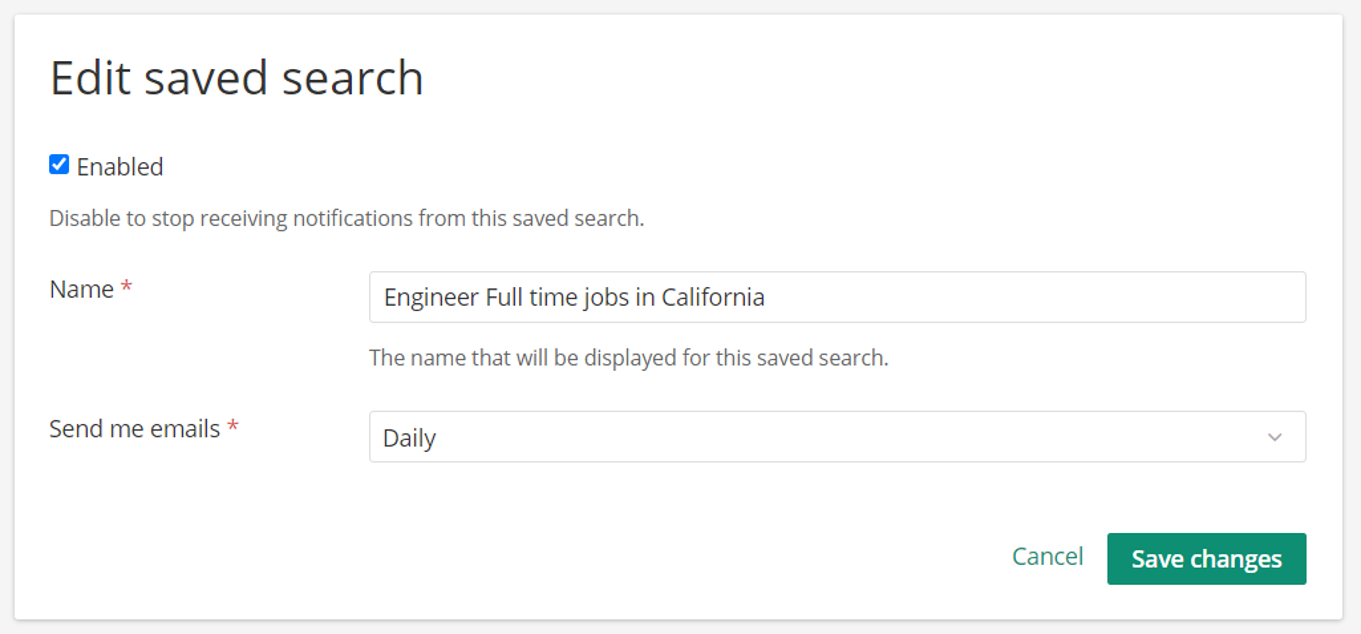
- You can edit your job alert by clicking on “Edit” at the right side, under the "Operations" column. There, you can change the notification interval, name, as well as dis- or enable the job alert and confirm your change by pressing the button to save your request.
- Alternatively, you can delete your job alert by clicking on “delete” on the right side in the "Operations" column of the job alert and confirming your request. After a job alert has been fully deleted, it is no longer possible to activate it again.
For anonymous users:
- Open a Job Alert you have received
- Scroll to the bottom
- Click on either "edit job alert" or "delete job alert"
- Change/delete the job alert
- Click on the respective button to save